What is BiblioNasium?
BiblioNasium is a book recommendation service for kids by kids. It's also provides online reading logs for students to use when reading and working on books. If you need a specific book in a specific reading level, this website can be of service, as well.
Is it free?
BiblioNasium is free for all users. In order to sign up as a student, you must put in your name and your PARENT'S e-mail address. Then, a message is sent to your parents to get them to agree. As a parent or teacher, you must have an e-mail address, first name, last name, and a password. You will receive a confirmation message in your e-mail, allowing you to use the program. As a teacher, you CAN CHOOSE to put in your school name as well as the address in order to use the program OR skip straight to the homepage and input that information later on.
What will BiblioNasium bring to your classroom?
This product can prove to be beneficial in all different grades throughout the education system. From using it in the Kindergarten classroom to find books by their favorite authors to using it in 7th grade classrooms as a challenge to increase outside reading to a college student looking for books for pleasure reading. This tool brings an easier way to locate books for students that are related to books they already like. It's also an easy way to hold onto reading logs without having to worry about paper book logs.
How do I use BiblioNasium?
Below, I will show you the steps of using BiblioNasium.
First, select who you are in order to sign up. There's profiles for parents, teachers, and students.
When you first log in, you'll see this page pop up. It allows you to manage your classroom book lists, set up a challenge for your students, generate reports, or manage your class itself.

Step 1: Add a classroom to your page. This will then generate a CODE for your students to enter when they are signing up.

Step 2: Manage your classroom. You can change the reading system, e-mail a list of students' usernames or passwords, e-mail letter to parents, or print a letter to parents. That's it! Begin assigning work or books and use search features for books you're looking for. Explore the page and use what you would like and don't use what you DON'T like.

This is the search feature. I did a search for "Toy Story" and it pulled up all these books. The nice thing about BiblioNasium is that they bring up a synopsis of the book and what it's about, as well as the cover, title, and author. It also shows the genre.

The following are the different pages you can access along the side as a teacher. Above each picture, I'll state what page it is and I'll explain what you can do with each one.
My Books - this page gives you the books that you have in your class. You can sort them as favorites, recommended, required, or the classroom wish list. The wish list can be made available to parents, giving them an idea of books you would like to see in the classroom.

My Classes - this page is about your class. It shows the books you have from above, the students in the class, and the challenges you have set up for your classroom.
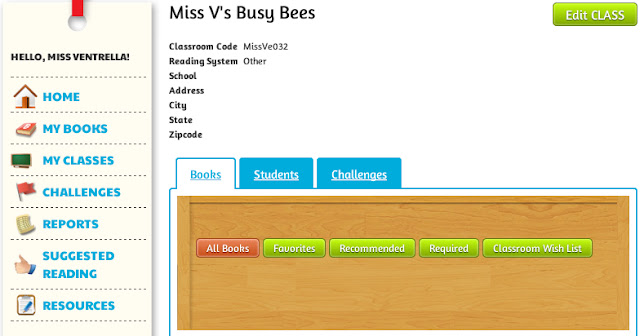
Challenges - This page is where you set up challenges for your classroom. It can be to read a specific amount of books based upon category or genre OR you can create a challenge based upon your own choice of books as the teacher.

Reports - this page is for the reports of your classroom. You can see the different amounts of time spent reading, pages read, books completed, and then can select students to see a more detailed report PER student.

Suggested Reading - this page suggests reading to your classroom. It can be based on favorites, popular serieses, book prize winners, or fun books. Like the search feature, if you highlight over the books, it gives you the title, author, a synopsis AND the Lexile reading measure.


-Use for reading logs
-Use for author studies
-Use in research projects
-Use for monthly reading projects
-Use when working on genre studies
-Hold competitions between students
-Share book recommendations with parents
-Hold competitions between various classes
-Create lists of books to be read for families
-Use when working on book recommendations
-Creating posts on your favorite books or authors
-Have students create wish lists for their own classroom library
-Create different movie trailers based on books that have been read
-Use to hold children accountable for reading over extended breaks
-Use as a group chat room for students to communicate about books with one another
First, select who you are in order to sign up. There's profiles for parents, teachers, and students.
When you first log in, you'll see this page pop up. It allows you to manage your classroom book lists, set up a challenge for your students, generate reports, or manage your class itself.
Step 1: Add a classroom to your page. This will then generate a CODE for your students to enter when they are signing up.

Step 2: Manage your classroom. You can change the reading system, e-mail a list of students' usernames or passwords, e-mail letter to parents, or print a letter to parents. That's it! Begin assigning work or books and use search features for books you're looking for. Explore the page and use what you would like and don't use what you DON'T like.
This is the search feature. I did a search for "Toy Story" and it pulled up all these books. The nice thing about BiblioNasium is that they bring up a synopsis of the book and what it's about, as well as the cover, title, and author. It also shows the genre.

The following are the different pages you can access along the side as a teacher. Above each picture, I'll state what page it is and I'll explain what you can do with each one.
My Books - this page gives you the books that you have in your class. You can sort them as favorites, recommended, required, or the classroom wish list. The wish list can be made available to parents, giving them an idea of books you would like to see in the classroom.
My Classes - this page is about your class. It shows the books you have from above, the students in the class, and the challenges you have set up for your classroom.
Challenges - This page is where you set up challenges for your classroom. It can be to read a specific amount of books based upon category or genre OR you can create a challenge based upon your own choice of books as the teacher.
Reports - this page is for the reports of your classroom. You can see the different amounts of time spent reading, pages read, books completed, and then can select students to see a more detailed report PER student.
Suggested Reading - this page suggests reading to your classroom. It can be based on favorites, popular serieses, book prize winners, or fun books. Like the search feature, if you highlight over the books, it gives you the title, author, a synopsis AND the Lexile reading measure.

Resources - finally, the resource page. This is where you can find out information for notable articles, book lists, fun stuff for kids, and reading resources and organizations. This could be very useful for the works of students and teachers.
------------------------------------------------------------------------
How can I use BiblioNasium in my classroom?
Below is a list of ways that this tool can be utilized in the classroom:
-Use for reading logs
-Use for author studies
-Use in research projects
-Use for monthly reading projects
-Use when working on genre studies
-Hold competitions between students
-Share book recommendations with parents
-Hold competitions between various classes
-Create lists of books to be read for families
-Use when working on book recommendations
-Creating posts on your favorite books or authors
-Have students create wish lists for their own classroom library
-Create different movie trailers based on books that have been read
-Use to hold children accountable for reading over extended breaks
-Use as a group chat room for students to communicate about books with one another
Honestly, the possibilities are ENDLESS.
How would YOU use BiblioNasium in your classroom? Answer in the comments on this post!
How would YOU use BiblioNasium in your classroom? Answer in the comments on this post!